Most old PCs do not encounter any difficulties when used for basic activities like surfing the Web, office applications, virtual meetings, etc. Nevertheless, when trying to perform an upgrade to Windows 11, you might come across the error, “Your processor is not supported.” It occurs due to the fact that the corporation permits specific processors for Windows 11 even if your computer works perfectly fine with the old system. There is also no problem with installing Windows 11 on incompatible processors. Nevertheless, before starting to upgrade the OS, you have to be aware of all potential dangers, meet other prerequisites, and make a backup copy of your data.
Why Windows 11 Says Your CPU Is Unsupported
Microsoft has provided a list of the processors approved for use with Windows 11. These include certain processors from Intel, AMD, and ARM that meet the criteria for security and performance set by Microsoft. “Not compatible CPU” means that the processor is not part of Microsoft’s list of processors that can work well with Windows 11, even though the computer may be able to use Windows 11. Many people have found themselves wondering why this is the case when their computers still seem to be operating fine. A warning about “non-compatible CPU” may be displayed at the following locations:
- PC Health Check
- Windows Update
- Windows Setup
The processor is only part of the compatibility check. Windows 11 also checks the following items:
- TPM 2.0
- Secure Boot
- RAM
- Available Storage
- UEFI Firmware Settings
If any of these requirements are not met, Windows Setup may interrupt the upgrade.
Check These Settings Before You Assume the PC Cannot Upgrade
Before you decide that Windows 11 cannot be run on your PC, check some important settings. Some computers fail compatibility tests just because the security feature is turned off.
Here’s what to see:
- Although the TPM is already installed, it may be disabled in the BIOS or UEFI.
- The secure boot may be turned off.
- The system may be using legacy BIOS instead of UEFI.
- The disk may remain in MBR partition format instead of GPT.
- You may need to update your BIOS or firmware.
- The storage drive may be running out of space.
- Important drivers may be out of date.
In some cases, only TPM 2.0 or secure boot is enabled to eliminate compatibility warnings without using bypass methods. However, if the CPU itself is not supported, a different solution is usually required.
What Are the Risks of Installing Windows 11 on an Unsupported CPU?
It is possible to install Windows 11 on unsupported hardware, but it is different from using officially supported hardware.
Possible risks include:
- Microsoft limited or not provided official support
- Future Windows updates may not work as expected
- The watermark “Does not meet system requirements” may be displayed
- Driver and software compatibility issues
- Older processors lose performance
- Installation and startup failure
- More troubleshooting after major Windows updates
- Security Concerns in the Absence of TPM or Secure Boot
- If the problem continues, you will need to return to Windows 10
These risks do not apply to all computers, but they need to be understood before making decisions.
When Installing Anyway May Make Sense
Depending on the situation, installation in a non-supported environment may be reasonable.
Consider the following cases:
- If the PC is a submachine.
- If the processor is slightly older than Microsoft’s supported list.
- If you understand the possible risks.
- If your computer has sufficient RAM and SSD storage.
- If the driver is stable and available.
- If you have a complete backup or system image.
- If you want to try Windows 11 before buying a new computer.
- If the PC is not used for important tasks.
For these users, it may be worth trying out Windows 11.
When You Should Avoid Unsupported Installation
In some cases, it is better to continue using Windows 10 as it is.
Avoid installing Windows 11 if:
- If it is the main commercial computer.
- If you rely on official support or security updates.
- If your PC already has a driver or boot issue.
- Cannot enable TPM or secure boot.
- Important hardware does not have drivers for Windows 11.
- If downtime is not acceptable.
- If there is no complete backup.
If PC stability is mandatory for work, school or business, it may be safer to continue using the supported Windows version or upgrade the hardware.
Common Ways to Install Windows 11 on an Unsupported CPU
There are several ways users can try to install Windows 11 on unsupported hardware. Each method has different procedures and potential risks.
Common methods include:
- Changing Registry Bypassing Unsupported CPU and TPM Checks
- Creating Installation Media with Rufus
- Using Guided Upgrade Software
- Replacing or changing Windows compatibility check files
- Clean installation from USB drive
- Perform in-place upgrades if possible
If you still want to install Windows 11 on an unsupported CPU, this guide describes several common methods, such as guided upgrade software, registry changes, Rufus, and installation file fixes. No matter which method you choose, be sure to back up important files and use official Windows ISO files as much as possible.
A Guided Upgrade Option
If you prefer not to manually edit registry entries or modify Windows installation files, 4DDiG Partition Manager is worth considering as a guided option. The software may help simplify several preparation steps involved in installing Windows 11 on unsupported hardware. It can be useful for checking Windows 11 compatibility requirements, creating installation media, managing storage partitions, and preparing your system before a major upgrade. While it may help bypass certain CPU, TPM, and Secure Boot restrictions, it does not make unsupported hardware officially supported by Microsoft, and successful installation can vary depending on your PC configuration.
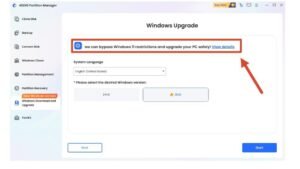
Uses of 4DDiG Partition Manager
- Check Failed Windows 11 Requirements: It can help identify which Windows 11 requirements are not being met, making it easier to understand why your PC fails compatibility checks.
- Bypass Certain Compatibility Checks: The tool may help bypass unsupported CPU, TPM, and Secure Boot checks on some systems, reducing the need for manual configuration changes.
- Create Windows 11 Installation Media: It can be useful for downloading official Windows 11 ISO files and creating bootable USB installation media for upgrades or clean installs.
- Prepare Partitions Before Installation: The software may help manage partitions, convert disk formats when needed, and prepare storage for a smoother Windows 11 installation process.
- Clone Your Disk Before Upgrading: Creating a full disk clone before a major upgrade can provide an extra layer of protection and make recovery easier if problems occur.
What to Back Up Before Installing
Backup is one of the most important factors in the upgrade process. Installing in non-compatible environments can fail, so data protection should always be paramount.
Back up the following items:
- Files on desktop
- Documentation
- Download
- Images
- Video
- Work folder
- Browser Bookmarks
- Saved Password
- Software License Key
- Installation File
- Game Save Data
- Local Mail Files
- BitLocker Recovery Key
- Clone a complete image or disk of the system if possible
- Windows 10 Recovery Drive or USB for Installation
These backups make it much easier to recover even if a problem occurs.
Quick Checklist Before You Proceed
Before you start installing, check the checklist below:
- Make sure the CPU does not meet the requirements.
- Check TPM and Secure Boot in BIOS or UEFI.
- Check whether your system is using UEFI or legacy BIOS.
- Backup the file or clone the disk.
- Save the BitLocker recovery key.
- Update your BIOS and important drivers.
- Ensure sufficient storage space.
- Download Windows only from the official ISO source.
- Decide whether to perform an in-place upgrade or clean installation.
- Be prepared to return to Windows 10 if necessary.
Common Mistakes to Avoid
Many installation problems are caused by users omitting basic preparations.
Avoid the following mistakes:
- Omit Backup Because “Computer Looks Like No Problem”
- Download Windows ISO files from unofficial websites
- Misunderstanding “unsupported” as “impossible”
- Assume Microsoft’s official support is available by bypassing the check
- Ignore TPM, Secure Boot, GPT, and UEFI settings
- Install Windows on a failed hard drive
- Use main business computers for testing
- Delete Windows.old folder before making sure everything works fine
Conclusion
Installing Windows 11 on a non-compatible CPU is possible on many computers, but unlike normal Windows upgrades, it needs to be treated as a careful decision-making task. Understanding possible risks can help you determine if that upgrade is appropriate for your system. Before trying out how to install, check TPM 2.0, Secure Boot, UEFI Settings, Storage Capacity, and Driver Support. These confirmations may solve some compatibility issues without additional changes. If you want a guided method, the 4DDiG Partition Manager can help you verify Windows 11 requirements, prepare partitions, create installation media, and prepare your PC for upgrades. The best way to protect your data and PC is to create a complete backup and understand the possible risks, even if there are useful tools.
Source: FG Newswire