When the C drive is full, many problems can occur on Windows PC. You may notice poor performance, Windows update failures, installation errors, or frequent “lack of disk space” warnings. Many users try to solve this problem by deleting files or running cleanup tools. These may help temporarily, but they do not necessarily solve the underlying cause. If cleanup causes the C drive to fill up quickly, it may be better to extend the C drive or upgrade to a larger SSD than to delete the repetitive file as a long-term solution. In many cases, system partitions do not have enough space to store Windows, applications, updates, and files you use on a daily basis. Understand when to extend your C drive to make safer and more effective decisions.
Clean the C Drive First or Extend It?
Before changing the partition, it is important to understand the difference between cleanup and expansion of the drive. The C drive cleanup deletes unnecessary files. This includes temporary files, old download files, browser cache, contents of recycle bins, log files, unused applications, etc. This process releases free space that already exists on the partition. The C drive extension is to increase the size of the partition itself. This gives Windows access to more storage from the same physical drive. If a junk file, duplicate file, or unused program occupies storage, cleanup is usually the best choice. However, if Windows, applications, games, and updates actually require additional capacity, it often makes more sense to extend the partition. If the drive is cleaned up and the free space is lost again in a short period of time, the partition may be too small for the current usage. While C drive cleanup frees up existing free space, C drive expansion expands the capacity of the system partition available to Windows itself.
Signs You Should Extend C Drive
There are several signs that increasing the size of the partition may be more effective than re-cleanup.
You should consider extending the C drive if:
- Frequent disk space warnings.
- Windows update fails due to lack of storage capacity.
- Unable to install new applications or games.
- The computer slows down while multitasking.
- The C drive appears red in the file explorer.
- The number of downloads, desktops, or AppData folders continues to increase.
- Very little free space can be recovered with the cleanup tool.
- Despite having already deleted unnecessary files, there is still limited space.
- Unassigned space exists on the same disk.
- Another partition has unused free space that can be reassigned.
If cleanup fails to resolve these problems, C-drive expansion will be a more practical long-term solution.
What to Check Before Extending C Drive
Prior preparation is important because partition changes affect the structure of the disk.
Before expanding your C drive, follow these steps:
- Backup important files and documents.
- Open “Disk Management” and check the current disk configuration.
- Check if unallocated areas already exist.
- Verify that the unallocated area is on the same physical disk as the C drive.
- Check if the unallocated area is right next to the C drive.
- Make sure you don’t have any recovery partitions or data partitions that could hinder expansion.
- Check the status of the drive if the drive is older or there is abnormal behavior.
- Keep the laptop connected to the power supply during partition operation.
Unlike file deletion, partition resizing changes storage configuration. You can prevent mistakes by checking the disk layout over a few minutes.
Why Disk Management Sometimes Cannot Extend C Drive
Many users notice that the “Volume Expansion” option is not available when they open “Disk Management” and right-click on the C drive. This is usually due to how Windows handles partition layouts. “Disk Management” typically requires that the unallocated area be on the right side of the C drive. If there is another partition between the C drive and the available area, Windows cannot extend the volume. Also, “Disk Management” cannot easily move partitions to create the necessary layout. In addition, Windows typically cannot add unallocated areas in another physical drive to the system partition. As a result, some users need to shrink, resize or move an existing partition before expanding the C drive. If you need a step-by-step guide on how to extend your C drive, this resource explains how to use partition software, command prompts, and disk management.
Disk Management vs DiskPart vs Partition Software
The right tool depends on the situation.
Use Disk Management for Simple Layouts
Disk Management is built into Windows and works well when there is unallocated space.It already exists next to the C drive. It has a simple graphical interface and does not require additional software. For basic partition configurations, this is often the easiest option.
Use DiskPart Only If You Are Comfortable with Commands
DiskPart is the command line utility that comes with Windows. You can extend the corresponding volume and perform advanced disk operations. However, choosing the wrong disk or partition can cause serious problems. The user must carefully review the contents before executing the command. Many beginners prefer other options because DiskPart has little room to tolerate mistakes.
Use Partition Software for Visual Resizing
Partition management software allows you to better understand disk layout. When you need to shrink another partition, move partitions, or manage more complex storage configurations, many users choose these tools. Visual previews allow you to grasp the content before applying changes.
A Visual Way to Extend or Resize Partitions
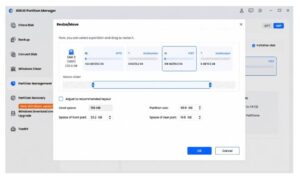
For users who prefer a guided interface, 4DDiG Partition Manager, a partition manager for Windows, may be useful for general partition work. This software extends, shrinks, resizes, creates, deletes, and formats partitions through a visual interface. It can be useful if you feel that disk management or DiskPart features are limited or difficult to use. Specific use examples include extending C drives that Windows tools cannot complete, shrinking other partitions to ensure free space, managing partitions after cloning to large SSDs, or adjusting disk layouts before major Windows updates. It can also be used to clone disks before changing partitions. Even when using partition management software, it is still a recommended practice to back up important files before changing partitions.
What Can Go Wrong During C Drive Extension?
Most partition changes are completed without problems, but users need to understand the possible risks.
Possible problems include:
- Power off while resizing.
- Select the wrong partition.
- Accidentally delete the recovery partition.
- Attempt to use unallocated areas of another physical disk.
- It is interrupted before the operation is completed.
- Extends the system drive on a failed disk.
- Even after the extension, additional storage is required due to Windows updates, and it becomes insufficient again.
- Inadvertently change the EFI partition or system partition and cause startup problems.
The user must always review the plan before applying the change. If you do not know the purpose of the partition, avoid changing it until you confirm its role.
Quick Checklist Before You Extend C Drive
Check this checklist before making partition changes:
- First of all, did you delete the temporary file
- Did you back up important files
- Is unallocated space on the same disk
- Is the unallocated area next to the C drive
- Is Recovery Partition or Data Partition Hindering Expansion
- Do you know which partition can be reduced safely
- Is the drive condition good
- Is the laptop connected to the power supply
- Previewed before applying the operation
- Did you check Windows after extension
Common Mistakes to Avoid
Many of the partition issues are caused by simple mistakes.
Avoid the following common mistakes:
- Delete system partition or recovery partition without understanding.
- Execute the DiskPart command on the wrong volume.
- Mistake free space in D drive as the same as unallocated area.
- Try to combine storage on another physical drive.
- Omit the backup before resizing the partition.
- Interrupt partition operation in the middle.
- Expand your C drive without addressing any storage-consuming applications at all times.
- Erase the original drive immediately after cloning without testing the new settings.
Conclusion
Lack of C drive space can affect Windows performance, software installation, and system updates. In many cases, deletion of unnecessary data is effective, but not necessarily a permanent solution. If the drive becomes full again soon after deletion, you may need to increase the capacity of the partition itself. Windows tools such as “Disk Management” and “DiskPart” can help extend the C drive in simple situations, but depend heavily on existing disk layouts. Work is often complicated due to lack of recovery partitions, unassigned areas, and other limitations. For users who prefer visual operations, tools such as 4DDiG Partition Manager may help resize, shrink, expand, or manage partitions.
Source: FG Newswire